
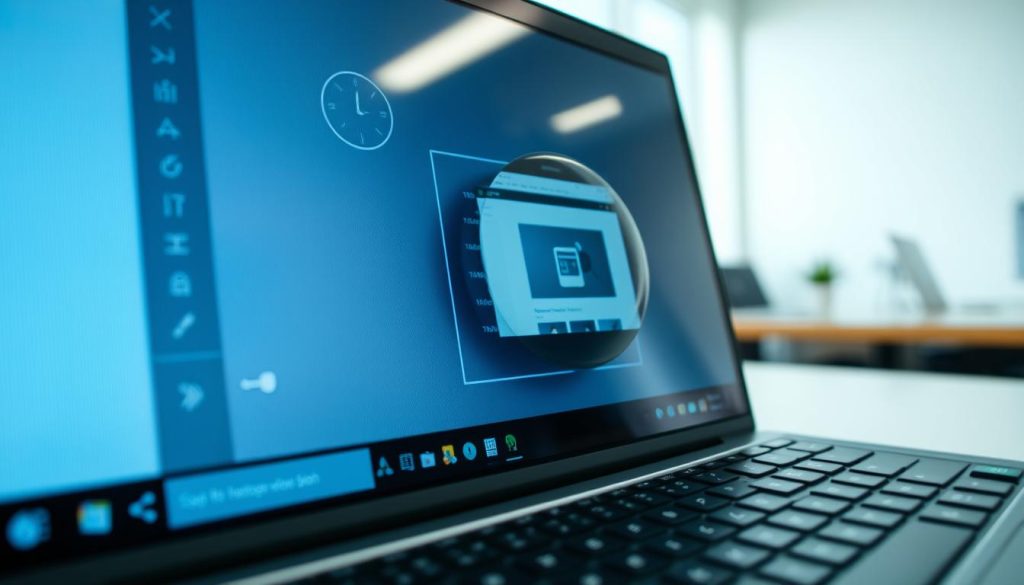
Screen magnification is a key tool for better digital experiences on Windows PCs. It helps with detailed work, reading small text, and improving accessibility. Knowing how to zoom can boost your productivity and comfort1.
Windows offers many ways to zoom your PC screen. Keyboard shortcuts work across various apps for quick magnification. Most Windows apps let you zoom in up to 500%1.
You can use keyboard controls, mouse scroll wheels, or built-in Windows tools to zoom. This helps people with visual challenges and those needing precise details2.
Key Takeaways
- Multiple zoom methods available on Windows PCs
- Keyboard shortcuts enable quick screen magnification
- Most applications support up to 500% zoom
- Zoom features enhance accessibility and productivity
- Different zoom options for various user needs
Understanding Windows Magnifier Tool and Screen Zoom Options
Windows offers powerful features to help users with visual challenges. The magnifier tool makes digital content more readable and accessible. It provides a comprehensive solution for screen zoom display.
The Windows Magnifier is a built-in tool that enlarges screen displays. It can zoom in up to 400 percent. This makes it easier for people with visual impairments to use their computer3.
Exploring Magnification Views
Windows Magnifier offers three view options to suit different needs:
- Full Screen View: Enlarges the entire display
- Docked View: Provides a magnified section along the screen edge
- Lens View: Creates a movable magnification window
Customization and Zoom Settings
Users can personalize their magnifier tool in Windows 11 accessibility settings4. Key features include adjusting zoom levels and setting specific zoom percentages.
- Adjusting zoom levels using + and – keys4
- Setting specific zoom percentages like 50%4
- Enabling smooth edges for improved text readability4
The Magnifier tool offers precise control over tracking options. Users can center mouse pointers, text cursors, or screen navigation to their needs4.
How to Zoom in on a PC: Essential Keyboard and Mouse Controls
Mastering zoom controls on your PC is easy with the right techniques. Windows offers various magnification methods to boost screen visibility for visually impaired users5.
Quick keyboard shortcuts help with screen navigation. These shortcuts offer low vision support for easier use.
- Windows logo key + Plus (+) turns on Magnifier5
- Windows logo key + Minus (-) zooms out5
- Ctrl + Alt + Mouse scroll wheel enables smooth zooming5
Advanced users can use more controls for precise screen management. These options allow for better control over magnified views.
- Ctrl + Alt + Arrow keys pan across magnified screens5
- Ctrl + Alt + Spacebar temporarily reveals full screen5
- Shift + Alt + Arrow keys resize lens view5
Touchscreen devices have easy-to-use zoom gestures. You can pinch to zoom or tap screen corners for quick adjustments5.
The default zoom level usually starts at 200%. This allows for flexible customization based on your visual needs6.
Conclusion
Windows PC screen navigation becomes easy when you know how to enlarge content. The Windows Magnifier tool offers various zoom options for different needs7. These zoom techniques help with detailed projects, small text, and better visibility.
Keyboard shortcuts quickly adjust screen magnification. Use Ctrl + plus sign to zoom in 25%, Ctrl + minus sign to zoom out7. Ctrl + zero resets to default view. These commands let you adjust your screen without disrupting work.
Screen magnification tools have become more user-friendly across platforms. They assist users with visual challenges and improve screen interactions for everyone.
Try different magnification styles like full screen, docked, or lens view. Find the most comfortable method for your needs7. Technology aims to make your digital experience smoother and more personal.
Master these zoom techniques to transform your Windows PC interaction. Use keyboard shortcuts and built-in tools to enlarge screen content easily. Customize your digital workspace to suit your viewing preferences.
FAQ
What is the Windows Magnifier tool?
Windows Magnifier is a built-in tool that enlarges screen content. It helps people with visual issues see better. This free feature improves readability for anyone needing a closer look.
How do I turn on the Windows Magnifier?
You can start Windows Magnifier in three ways. Press Windows key + Plus (+) sign. Or go to Settings > Ease of Access > Magnifier. You can also search for “Magnifier” in the Windows search bar.
What are the different magnification views available?
Windows Magnifier has three main views. Full Screen enlarges the entire screen. Docked shows a magnified strip on screen edges. Lens creates a movable magnifying glass following your cursor.
Can I use keyboard shortcuts to zoom in and out?
Yes! Here are some handy keyboard shortcuts. Windows key + Plus (+) to zoom in. Windows key + Minus (-) to zoom out. Windows key + Escape to exit Magnifier.
Is there a way to zoom using my mouse?
Yes, you can zoom with your mouse. Hold Ctrl and use the scroll wheel in many apps. Touchscreen users can use pinch-to-zoom gestures too.
Can I customize the Magnifier settings?
You can adjust various Magnifier settings. These include zoom level, color filters, and tracking preferences. You can also invert colors and smooth text edges.
Is the Magnifier tool only for people with visual impairments?
Magnifier is useful for everyone. It helps designers, programmers, and artists examine screen details closely. Anyone who needs a better view can benefit from this tool.
Does the Magnifier work in all applications?
Magnifier works in most Windows apps and web browsers. Some specialized software or full-screen games might have limited compatibility. But overall, it’s widely usable.
Source Links
- How to Zoom In or Out With Your Keyboard – https://www.lifewire.com/zoom-in-or-out-with-keyboard-6746942
- How to zoom in on a Windows PC in a web browser or app, or using its built-in Magnifier tool – https://www.businessinsider.com/guides/tech/how-to-zoom-in-on-pc
- How to Use the Magnifier Tool on Windows, Mac, and Mobile – https://www.pcmag.com/how-to/how-to-use-the-magnifier-tool-on-windows-mac-and-mobile
- How to customise the Magnifier in Windows 11 | My Computer My Way – https://mcmw.abilitynet.org.uk/how-to-customise-the-magnifier-in-windows-11
- Magnifier keyboard shortcuts and touch gestures – https://support.microsoft.com/en-us/windows/magnifier-keyboard-shortcuts-and-touch-gestures-6d7c3095-75ec-258f-6f5b-3b0bc19a18e7
- How to Zoom In or Out on a Windows PC – https://www.makeuseof.com/windows-zoom-in-out/
- Accessibility features in Microsoft Edge – https://support.microsoft.com/en-us/microsoft-edge/accessibility-features-in-microsoft-edge-4c696192-338e-9465-b2cd-bd9b698ad19a

