
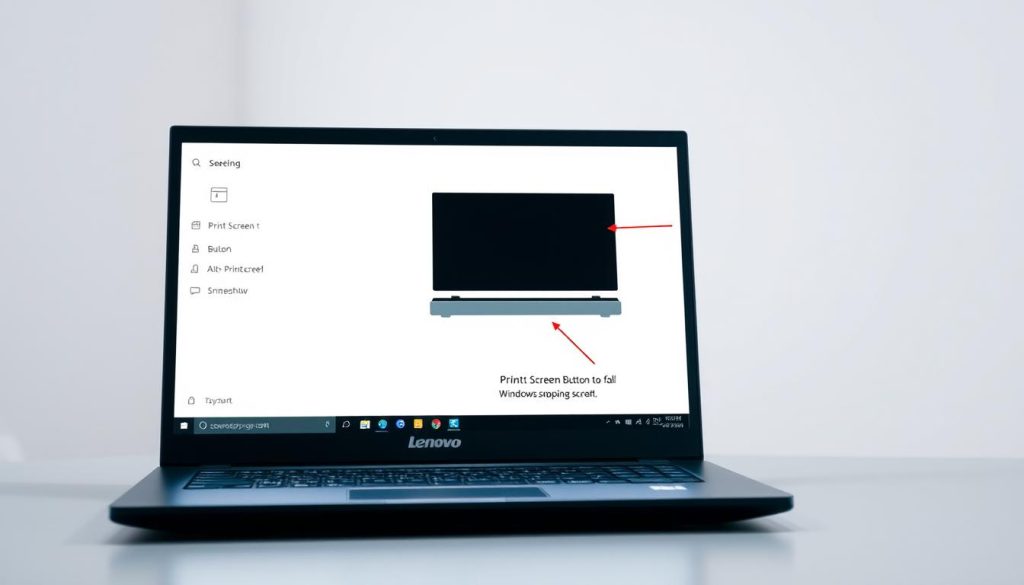
Screenshots are vital in today’s digital world. They help document info, fix tech issues, and share visual content1. Lenovo laptops offer many easy ways to capture your screen1.
Lenovo’s tools give users various options for screen captures. These methods work great for both pros and students1. Most Lenovo laptops with Windows 10 or 11 have several screenshot options2.
Did you know that 80% of laptop users have built-in screenshot tools? Yet, many don’t know about them1. This guide will show you the best ways to take screenshots on your Lenovo laptop.
Key Takeaways
- Multiple screenshot methods available on Lenovo laptops
- Screenshots essential for professional and personal documentation
- Built-in tools provide easy screen capture options
- Keyboard shortcuts offer quick screenshot solutions
- Visual communication through screenshots is increasingly important
Essential Screenshot Methods for Lenovo Laptops
Capturing screenshots on your Lenovo laptop is a breeze. You can grab your entire screen or just a specific window. Let’s explore the most effective print screen techniques for Lenovo3.
Print Screen (PrtSc) Key Basics
The Print Screen key is a vital Lenovo screenshot shortcut. It’s usually in the upper right corner of the keyboard. This key copies the full screen to your clipboard3.
To use this method:
- Press the PrtSc key
- Open an image editing program like Paint
- Paste the screenshot using Ctrl + V
Windows + PrtSc Automatic Screenshot
The Windows + PrtSc shortcut offers a quick screen grab solution. It saves a full-screen shot directly to your Pictures folder3. This method ensures easy access to your captured images.
Targeting Active Windows
Want to capture only a specific window? Try the Alt + PrtSc combo. This copies just the active window to your clipboard3. It allows for more precise screenshot selection.
| Screenshot Method | Action | Result |
|---|---|---|
| PrtSc Key | Press Print Screen | Copies entire screen to clipboard |
| Windows + PrtSc | Press Windows and Print Screen | Saves full screenshot to Pictures folder |
| Alt + PrtSc | Press Alt and Print Screen | Captures only active window |
Pro Tip: Practice these screenshot methods to become more efficient at capturing and sharing your screen content!
Screenshot on Lenovo Laptop Using Built-in Tools
Lenovo laptops offer powerful built-in screenshot utilities. These tools make capturing your screen easy. The Lenovo screenshot utility is integrated with Windows, providing multiple ways to capture screenshots4.
Users can access the Snipping Tool from the Start menu. This tool allows for flexible screen capture options4. Snip & Sketch offers even more advanced features.
Snip & Sketch has five capture modes. These include rectangular, freeform, window, fullscreen, and close snipping4. It shows a preview of the saved screenshot.
For gamers, the Xbox Game Bar is great for capturing gameplay. The Paint app lets you edit your screenshots easily4. These tools help Lenovo users document their digital experiences quickly5.
Windows 10 and 11 have improved screenshot features. Lenovo users now have robust, easy-to-use tools. You can capture full screens, specific windows, or custom areas with ease4.
FAQ
What is the simplest way to take a screenshot on my Lenovo laptop?
Press the Print Screen (PrtSc) key to capture your entire screen. It’s usually in the upper right corner of your keyboard. Then, paste the image into a program like Paint or Photoshop.
How can I automatically save a full-screen screenshot?
Use the Windows + PrtSc keyboard shortcut. This saves the full-screen shot directly to your Pictures folder. It’s quick and easy to access later.
Can I capture only a specific window on my Lenovo laptop?
Yes! Use Alt + PrtSc to capture just the active window. This works great for capturing a single app without your whole desktop.
What is the Snipping Tool, and how do I use it?
The Snipping Tool is a Windows utility for custom screen captures. It lets you select rectangular, free-form, window, or full-screen snips. Search “Snipping Tool” in the Windows bar to find it.
Is there a newer screenshot tool in Windows?
Yes, Snip & Sketch has replaced the old Snipping Tool. It offers better features like touch screen support and improved editing. Find it by searching in the Windows bar.
How can gamers take screenshots on a Lenovo laptop?
Gamers can use the Xbox Game Bar for screenshots during gameplay. Press Windows + G to open the Game Bar. Then use its screenshot function to capture your gaming moments.
Are screenshot methods different on various Lenovo laptop models?
Most Lenovo laptops use standard Windows screenshot methods. Some models might have extra function key (Fn) combos. Others may have pre-installed software for screen captures.
Can I edit my screenshots after capturing them?
Absolutely! Both Snipping Tool and Snip & Sketch offer basic editing. You can draw, highlight, and crop your screenshots. For more advanced edits, try Paint, Photoshop, or GIMP.
Source Links
- Screenshot: How to Screenshot on Laptop or Desktop Computers – https://www.lenovo.com/ie/en/glossary/what-is-screenshot/?srsltid=AfmBOopcHOAKMNFYJmtwa-eix_tNJM6rgDe_yvKcAq5jsYCdwySJ7g21
- How to Screenshot on Lenovo in 4 Easy Ways – https://zight.com/blog/how-to-screenshot-on-lenovo/
- How to Screenshot on Lenovo Laptop, Thinkpad, Chromebook, and More? – https://www.dvdfab.cn/resource/image/how-to-screenshot-on-lenovo
- How to Screenshot on Lenovo Laptop or ThinkPad: 5 Easy Ways – https://www.wikihow.com/Screenshot-on-Lenovo-Laptop
- Screenshot: How to Screenshot on Laptop or Desktop Computers – https://www.lenovo.com/us/en/glossary/what-is-screenshot/?srsltid=AfmBOoph-Nm-s3Z6l-la8bUVtxxSCxkCLxvaLmGUQlaLvoFvtKYcrKAd

