
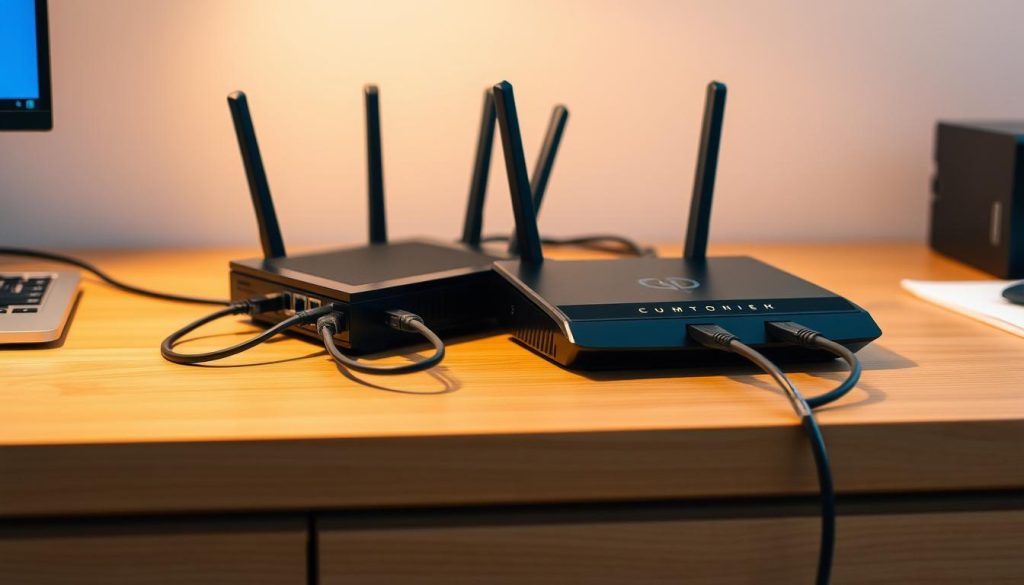
Connecting a router to a modem is easier than you might think. This simple process boosts your network setup and internet access. A good setup ensures top-notch performance and connectivity1.
Knowing the basics of network setup is key for home internet users. A modem brings the internet signal into your home. But without a router, the signal can’t reach multiple devices1.
A router turns a single-user connection into a strong home network. It allows many devices to connect at once.
Setting up your internet involves a few important steps. You need to power on devices in the right order. Also, you must set up the network settings correctly1.
Follow the steps carefully to make sure your router works well. This helps it communicate with your internet provider’s network.
Key Takeaways
- Proper router and modem connection is critical for home internet performance
- Network configuration requires precise device setup and power sequencing
- Understanding WAN connection types helps establish stable internet access
- Users must enter correct ISP credentials for successful connection
- Regular troubleshooting can resolve common internet connectivity issues
Essential Equipment and Pre-Installation Preparation
Setting up a reliable home internet system requires careful planning. You’ll need the right equipment and understanding of wireless networking basics. This knowledge will help you create a stable connection.
Key Hardware Components
To establish a robust internet connection, you’ll need several essential items:
- Modem with compatible broadband connection2
- Router for wireless networking
- Ethernet cable for direct connections3
- Power adapters for both devices
Strategic Setup Considerations
The right location for your networking equipment is crucial. Optimal placement can significantly boost your internet performance3.
Choose a central, elevated spot for maximum signal distribution. Ensure proper ventilation for your devices4.
Before installation, verify the following:
- Check modem compatibility with your internet service provider2
- Ensure you have the correct ethernet cable for your network speed3
- Read the manufacturer’s instruction manual carefully2
Use Cat6 cables for optimal performance, supporting speeds up to 10 Gbps3. Implement Wi-Fi security protocols like WPA2 or WPA3 to protect your network3.
Router Configuration and Network Setup
Setting up wireless networking requires strategic configuration with your internet provider’s gateway device. Access your router’s settings through a web browser using its IP address, usually 192.168.1.1. Many modern routers offer setup wizards to simplify the process5.
Basic Router Settings
Update your router’s firmware to boost performance and security. This can fix up to 90% of known vulnerabilities6.
Choose a unique network name and select a Wi-Fi channel with minimal interference. Placing your router in an open area can boost signal range by 25%7.
Network Security Setup
Enable WPA2-PSK [AES] encryption for the strongest Wi-Fi security5. Create a complex yet memorable password to protect your network.
About 40% of users forget to change default router credentials6. Changing the default Wi-Fi password can reduce unauthorized access by 70%7.
Connection Verification
After setup, check internet access and signal strength. Save all changes before exiting the configuration screen5.
If needed, use a Wi-Fi extender to boost network coverage by 50%7. Always restart your router to activate new settings properly.
FAQ
What’s the difference between a modem and a router?
A modem connects your home to the internet provider’s network. A router distributes that connection to multiple devices wirelessly and via ethernet ports. The modem acts as a gateway, while the router spreads the internet connection.
Do I always need a separate modem and router?
Not always. Some providers offer combo devices that merge modem and router functions. Yet, separate devices often give better performance and more advanced features. They also allow for easier upgrades when needed.
What type of cable do I need to connect my router to my modem?
You’ll need an ethernet cable to link the modem’s ethernet port to the router’s WAN port. Cat5e or Cat6 cables are typically used for this connection. Most standard ethernet cables will work fine.
How do I secure my new home network?
Enable WPA3 or WPA2 encryption for your network. Create a strong password with mixed characters, numbers, and symbols. Avoid using default passwords that come with your router.
Consider hiding your network name (SSID) for extra security. This makes it harder for outsiders to find and access your network.
What should I do if my router isn’t connecting to the internet?
First, check all cable connections to ensure they’re secure. Restart both your modem and router by unplugging them for 30 seconds. Check if your internet provider is experiencing an outage.
If problems continue, contact your provider’s technical support for further assistance. They can help troubleshoot more complex issues.
How often should I update my router’s firmware?
Check for firmware updates every 3-6 months. Updates improve security, fix bugs, and boost network performance. Many modern routers allow automatic updates or easy manual updates through their interface.
What’s the best location for my router?
Place your router centrally in your home, away from walls and metal objects. Try to elevate it and keep it away from other electronic devices. Ensure good ventilation to prevent overheating.
Can I set up my network without technical expertise?
Yes, you can! Most modern routers have user-friendly interfaces and setup wizards. If you’re comfortable with basic tech, you can set up your home network. Just follow the instructions provided with your router.
How many devices can connect to my router?
Modern Wi-Fi routers typically support 10-250 connected devices, depending on the model. For most homes, a router supporting 50-100 devices is plenty. This covers typical household needs with room to spare.
What internet speed do I need for my home network?
Internet speeds depend on your household’s usage. For basic browsing and email, 25 Mbps works well. Streaming and gaming may require 100-200 Mbps for smooth performance.
Large households with many users might want 300-500 Mbps. This ensures everyone can use the internet without slowdowns.
Source Links
- How to install TP-Link wireless router to work with a DSL Modem (PPPoE) – https://www.tp-link.com/cac/support/faq/618/
- How To Install a Modem? – GeeksforGeeks – https://www.geeksforgeeks.org/how-to-install-a-modem/
- 7 steps to set up a home network | TechTarget – https://www.techtarget.com/searchnetworking/tip/Tips-for-setting-up-a-home-network
- Preparing for Router Installation – https://www.cisco.com/c/en/us/td/docs/routers/ir8340/hardware/installation/b-ir8340-hig/m_prepare.pdf
- How to Access and Change Your Wi-Fi Router’s Settings – https://www.pcmag.com/how-to/how-to-access-your-wi-fi-routers-settings
- How to Set Up a Router – Step-by-Step – https://www.cisco.com/c/en/us/solutions/small-business/resource-center/networking/how-to-set-up-router.html
- How to Connect a Router to a Modem and Connect to Wi-Fi – https://www.lifewire.com/connect-router-to-modem-5179415

