
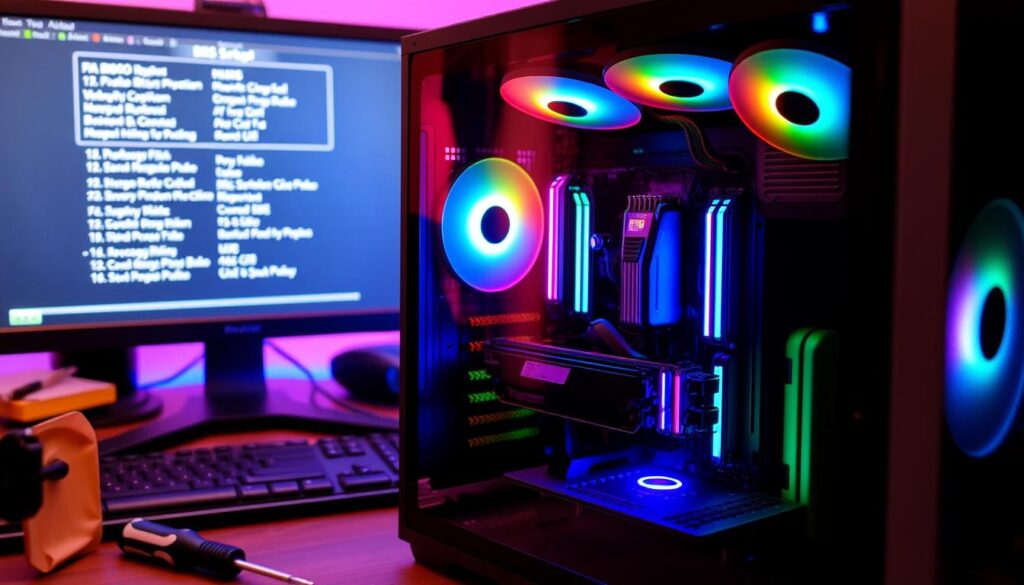
Accessing your computer’s BIOS is crucial for optimizing system performance. It lets you set up important boot options and system settings. Most newer computers with UEFI BIOS now offer simpler access methods.
Different computer brands use unique key combinations to enter BIOS. Common keys include F2, Delete, F10, and Esc. These keys vary based on your specific device.
Modern computers have made BIOS access easier. Windows 11, 10, and 8 now give clear instructions for entering BIOS settings. F2 or Delete are still the most common keys for BIOS access during startup12.
Key Takeaways
- BIOS access varies by computer manufacturer
- Modern computers offer easier BIOS entry methods
- Common BIOS entry keys include F2, Delete, and F10
- Understanding BIOS helps optimize system performance
- Each computer model may have unique BIOS access instructions
What is BIOS and Why Enter It?
Your computer’s firmware settings manage essential hardware operations. BIOS acts as the interface between software and hardware. It determines how your system functions at its most basic level3.
Modern computers are moving from traditional BIOS to advanced UEFI systems. UEFI offers better capabilities and security features4. This upgrade changes how computers initialize and manage hardware settings.
Understanding BIOS Basics
BIOS performs critical functions that keep your computer running smoothly:
- Initializes hardware during startup
- Manages system configuration
- Controls boot sequence
- Enables hardware communication
Importance of BIOS Configuration
Accessing your BIOS lets you customize essential hardware settings. You can boost performance by:
- Adjusting CPU and memory configurations
- Enabling virtualization technologies
- Setting boot priorities
- Managing security features
Understanding your BIOS is like having a backstage pass to your computer’s inner workings.
| BIOS Type | Key Features | Transition Status |
|---|---|---|
| Legacy BIOS | Basic hardware initialization | Being phased out |
| UEFI | Advanced security, larger drive support | Current standard5 |
Knowing your CMOS and UEFI firmware settings is crucial. It helps with troubleshooting hardware issues. It also allows you to enhance system performance3.
How to Enter BIOS on Different Devices
Accessing the motherboard BIOS can be tricky. Each device has unique entry methods. Understanding the right boot sequence and BIOS keys is crucial for configuring your computer’s core settings.
Entering BIOS on Windows PCs
Windows computers offer multiple ways to access BIOS settings. Different manufacturers use specific BIOS keys during startup6:
- ASRock: F2 or DEL
- ASUS: F2 or DEL
- Acer: F2 or DEL7
- Dell: F2 or F127
- HP: F107
- Lenovo: F2, Fn + F2, or F1
- MSI: DEL
Accessing BIOS on Mac Devices
Mac computers use EFI (Extensible Firmware Interface) instead of a standard BIOS6. To access the firmware settings:
- Hold the Option key during startup6
- For Microsoft Surface tablets, press and hold the volume up button
Tips for Entering BIOS on Laptops
Laptop BIOS access can be more challenging. Some additional tips include:
- Some laptops require pressing Fn + BIOS key
- For fast-booting systems, use Windows Advanced Startup
- Press the designated key repeatedly during startup7
Pro Tip: Always check your specific device’s manual for the most accurate BIOS entry method.
BIOS settings can vary by manufacturer. Patience and careful reading are key to navigating your computer’s firmware interface6.
Common Issues When Entering BIOS
BIOS configuration can be tricky. Users often face challenges when accessing core system settings. Understanding these roadblocks helps troubleshoot BIOS access more effectively8.
Black Screen or No Response
A black screen during BIOS access is alarming. Hardware incompatibilities or system configuration problems might cause this issue9.
Possible causes include faulty RAM, CPU issues, motherboard problems, or power supply complications.
- Faulty RAM modules
- CPU connection issues
- Motherboard malfunctions
- Power supply complications
Troubleshooting Keyboard Input Problems
Wrong key presses can block BIOS entry. Different computer brands use various keys for BIOS access:
- For Dell computers: Press F2 or F12
- On HP systems: Use F10
- Lenovo laptops typically require F1 or Enter
Effective BIOS Troubleshooting Strategies
When usual methods fail, try these advanced BIOS troubleshooting techniques:
- Use a PS2-style keyboard instead of USB
- Create a bootable emergency disk
- Clear CMOS to reset system configurations9
“Patience and systematic approach are key when troubleshooting BIOS access issues.” – Tech Support Expert
For ongoing problems, seek professional system configuration help8.
Customizing BIOS Settings
System configuration can boost your computer’s performance. The BIOS offers a dashboard for adjusting core functions10. You can fine-tune your device to match your specific needs11.
Boot order customization is key for controlling startup. You can streamline this process with targeted BIOS configuration. Boot screens let you set priorities for storage drives and DVD-ROM10.
Virtualization and overclocking are advanced settings that can improve performance. Virtualization allows running multiple operating systems smoothly. Careful overclocking can increase CPU processing power10.
Be cautious when exploring these settings. Each change can affect system stability. Research and understand modifications before making them.
For accurate guidance, check your computer’s manual or manufacturer’s website. These resources provide specific information for your device.
FAQ
What exactly is BIOS?
BIOS is firmware on your computer’s motherboard. It starts hardware and links your operating system with computer parts. BIOS is key software that boots your computer and runs basic functions.
How do I enter BIOS on a Windows PC?
Press a specific key quickly when your computer starts up. Common keys are DEL, F2, F10, or ESC. The key varies by computer brand.
Dell often uses F2 or F12. ASUS and Acer typically use F2 or DEL.
What can I do in the BIOS settings?
BIOS lets you change boot order and enable virtualization. You can adjust CPU performance and set memory speed. It also manages power options and security features like TPM encryption.
Be careful when making changes. Some tweaks can cause system problems.
What if I can’t enter BIOS during startup?
Try different BIOS entry keys or use a PS2-style keyboard. You can create a bootable emergency disk or cause a system-halting error.
For Windows, use Advanced Startup options. A Windows install disk can access UEFI Firmware Settings too.
How do I enter BIOS on a Mac?
On Macs, hold the Option key during startup. For Microsoft Surface tablets, press and hold the volume up button.
Some laptops need Fn + BIOS key. Check your device’s manual for exact instructions.
Is entering BIOS safe?
Entering BIOS is usually safe, but be careful changing settings. Wrong tweaks can disable parts or affect system stability.
Always check your computer’s manual before making big changes.
What’s the difference between BIOS and UEFI?
UEFI is a modern BIOS replacement. It offers better features, faster boot times, and improved security.
Newer computers use UEFI. It looks like traditional BIOS but has enhanced abilities.
Source Links
- How to Enter the BIOS on Windows 10 & 11 (And Older Versions) – https://www.makeuseof.com/tag/enter-bios-computer/
- How to Enter the BIOS on Windows 10 – https://www.howtogeek.com/783790/how-to-enter-the-bios-on-windows-10/
- What is BIOS (Basic Input/Output System)? – https://www.techtarget.com/whatis/definition/BIOS-basic-input-output-system
- 4 Types of BIOS and Why They Are So Important – Spiceworks – https://www.spiceworks.com/tech/devops/articles/what-is-bios/
- What is BIOS? A Guide for Beginners | Simplilearn – https://www.simplilearn.com/what-is-bios-article
- How do you access BIOS setup on different types of computers? – https://www.linkedin.com/advice/0/how-do-you-access-bios-setup-different
- How to Access BIOS on Different Laptop Brands? – https://www.szyunze.com/how-to-access-bios-on-different-laptop-brands/
- Cannot enter BIOS setup. – https://community.spiceworks.com/t/cannot-enter-bios-setup/393417
- Computer wont even boot to bios – https://forums.tomshardware.com/threads/computer-wont-even-boot-to-bios.1456544/
- Configuring BIOS Settings – https://docs.oracle.com/cd/E19269-01/820-5830-13/app_bios.html
- How do you access and modify BIOS settings on different operating systems? – https://www.linkedin.com/advice/3/how-do-you-access-modify-bios-settings-different

