
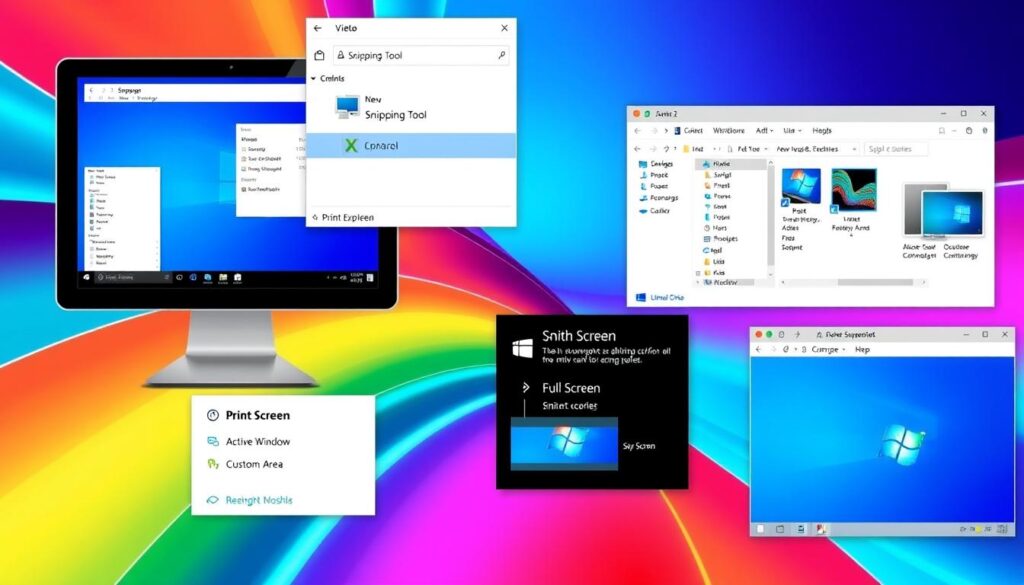
Microsoft Windows makes taking screenshots a breeze. It offers several methods to capture your screen accurately. Windows 11 has built-in tools and keyboard shortcuts for easy screenshots.
The Print Screen key (PrtScn) copies entire screen images to the clipboard. Windows also provides the Windows Key-Shift-S shortcut. This opens the Snipping Tool for various screenshot types1.
Modern Windows versions have advanced screenshot features. The Snipping Tool now includes OCR technology and video recording. You can quickly access it by typing “Snipping” in the Start menu1.
Key Takeaways
- Windows offers multiple screenshot capture methods
- Print Screen key captures full screen images instantly
- Snipping Tool provides advanced screenshot features
- Keyboard shortcuts enable quick screen captures
- Screenshots can be saved locally or to cloud storage
Understanding Screenshot Methods on Windows
Windows offers many ways to capture screenshots. These options cater to both professionals and casual users. You can find built-in tools and third-party software for screen captures2.
Built-in Windows Screenshot Tools
Windows has powerful native screenshot tools. The Snipping Tool is a comprehensive solution for screen captures2.
It offers rectangular and freehand selection options. You can also capture full-screen or specific windows. The tool allows direct editing of screenshots2.
- Rectangular selection capture
- Freehand selection options
- Window or full-screen screenshots
- Direct editing capabilities
With the Snipping Tool, editing is easy. You can highlight, crop, color, and add text to your screenshots2.
Third-Party Applications
Third-party apps offer extra features for advanced users3:
| Tool | Key Features |
|---|---|
| Snagit | Advanced editing and annotation |
| Lightshot | Quick sharing capabilities |
| ShareX | Extensive customization options |
Selecting the Right Method for You
Your choice depends on your specific needs. Think about ease of use and editing capabilities. Consider your sharing preferences too3.
“The right screenshot tool can transform how you capture and share digital information.”
Try different methods to find what works best. The ideal tool will fit smoothly into your workflow3.
Using Keyboard Shortcuts to Take Screenshots
Windows makes capturing screenshots a breeze with built-in keyboard shortcuts. These techniques can save you time and effort. They’re perfect for projects, documentation, or sharing information.
Windows offers multiple ways to capture screens. Each method is designed for different scenarios. Let’s explore the most efficient ways to take screenshots using keyboard shortcuts.
Print Screen Key Functionality
The Print Screen (PrtScn) key is your main tool for full-screen images. It copies the entire screen to your clipboard4. Here’s a quick look at how it works:
- Press PrtScn to copy the entire screen
- Use Windows key + PrtScn to automatically save the screenshot5
- Screenshots are saved in the Pictures > Screenshots folder by default5
Windows + Shift + S Shortcut
The Windows + Shift + S shortcut opens the Snipping Tool. It offers more precise screenshot options5. This method allows you to:
- Capture rectangular areas
- Take freeform screenshots
- Select specific windows
- Grab full-screen images
- Optional screenshot delay of 3, 5, or 10 seconds5
Alt + Print Screen for Active Windows
The Alt + Print Screen shortcut is great for capturing your current window4. This method copies the active window to the clipboard. It allows for quick, targeted screenshots across various applications.
Pro Tip: For Microsoft Surface devices, use the Windows logo + volume down button to take a full-screen screenshot5.
Mastering these keyboard shortcuts will transform how you capture and share screen content in Windows.
Saving and Managing Your Screenshots
Capturing Windows screenshots is just the beginning. Knowing how to save and organize screen captures can improve your digital workflow6. Effective screenshot management is vital for professionals and casual users alike7.
Automatic Screenshot Storage
Windows has built-in methods for saving screen captures automatically. The Windows key + Print Screen shortcut saves full-screen shots to Pictures > Screenshots folder5. This feature keeps your visual info safe.
Organizing Your Digital Captures
- Create dedicated folders for different screenshot categories
- Use consistent naming conventions
- Regularly clean up unnecessary screenshots
Editing Screenshots for Enhanced Quality
You might want to improve your screenshot’s look after capturing it. Windows offers basic editing tools like Paint and Photos app6.
For more advanced editing, try specialized screen capture software with better image manipulation features7.
Professional Screenshot Management Tools
| Tool | Features | Price |
|---|---|---|
| Snagit | Advanced editing, screen recording | $62.99 |
| Nimbus Screenshot | Browser extension, cloud storage | Free/Paid |
| Windows Snipping Tool | Built-in, basic editing | Free |
Pro tip: Always optimize your screenshots for web use to ensure faster loading and better visual clarity.
Remember, effective screenshot management can save you time and improve your digital documentation process.
Troubleshooting Screenshot Issues on Windows
Windows screenshot options can be tricky. Technical challenges might stop you from capturing your screen. Most screenshot issues have easy fixes to get you back on track.
Identifying Common Problems
Windows offers six main solutions for screenshot problems. Try keyboard shortcuts like Windows Key + PrtScn or Alt + PrtScn.
If standard methods fail, the Movavi Screen Recorder is a reliable backup. It can help you capture your screen without hassle.
Technical Troubleshooting Steps
Updating graphics drivers often solves screenshot issues. Driver Easy Pro can update drivers with one click.
Check your keyboard settings and Windows accessibility options. These might be blocking screenshot functionality.
For ongoing problems, run system troubleshooters. Also, check for Windows updates to fix potential bugs8.
FAQ
What’s the easiest way to take a screenshot in Windows?
Windows offers simple screenshot options. Press Print Screen (PrtScn) to capture the entire screen. Use Windows + Shift + S for the Snipping Tool. For active windows, try Alt + PrtScn.
How do I save a screenshot automatically?
Use Windows key + PrtScn to save full-screen shots to Pictures > Screenshots. The Snipping Tool lets you save and annotate screenshots directly.
Can I capture just a specific part of my screen?
Yes! Open the Snipping Tool with Windows + Shift + S. Choose from rectangular, free-form, window, or full-screen capture options.
What if my screenshot shortcuts aren’t working?
Update graphics drivers and check Windows accessibility settings. Make sure your laptop’s Function (Fn) key isn’t interfering. Try alternative methods or third-party software if issues persist.
Can I edit my screenshots in Windows?
Yes! Use Paint or Photos app for basic edits. For advanced changes, consider specialized image editing software.
Are there different screenshot methods for different Windows devices?
Microsoft Surface devices use Windows logo + volume down for full-screen shots. Standard Windows PCs have various methods like Print Screen and Snipping Tool.
How can I quickly share my screenshots?
The Snipping Tool offers direct sharing options. Paste screenshots into apps using Ctrl + V after capturing. Save them to a specific folder for easy access.
Source Links
- 7 Easy Ways to Take Screenshots in Windows 11 – https://www.pcmag.com/how-to/how-to-take-screenshots-in-windows-11
- How to Take Screenshots on Windows 11 | Windows Learning Center – https://www.microsoft.com/en-us/windows/learning-center/how-to-screenshot-windows-11
- How to Screenshot on Windows – Ascendant Technologies, Inc. – https://ascendantusa.com/2024/09/12/how-to-screenshot-on-windows/
- 5 Windows Screenshot Shortcuts to Capture Your Screen Faster – https://zight.com/blog/windows-screenshot-shortcuts/
- 7 Easy Ways to Take Screenshots in Windows 11 – https://www.cnet.com/tech/services-and-software/7-easy-ways-to-take-screenshots-in-windows-11/
- How to Take a Screenshot in Windows 10 – https://www.pcmag.com/how-to/take-screenshot-windows-10
- How to Take a Screenshot on Windows (7, 8, 10), and Save and Edit Them – https://kinsta.com/blog/how-to-screenshot-on-windows/
- Windows 11 Snipping Tool not Working [12 Fixes] – Movavi – https://www.movavi.com/learning-portal/windows-11-snipping-tool-not-working.html

