
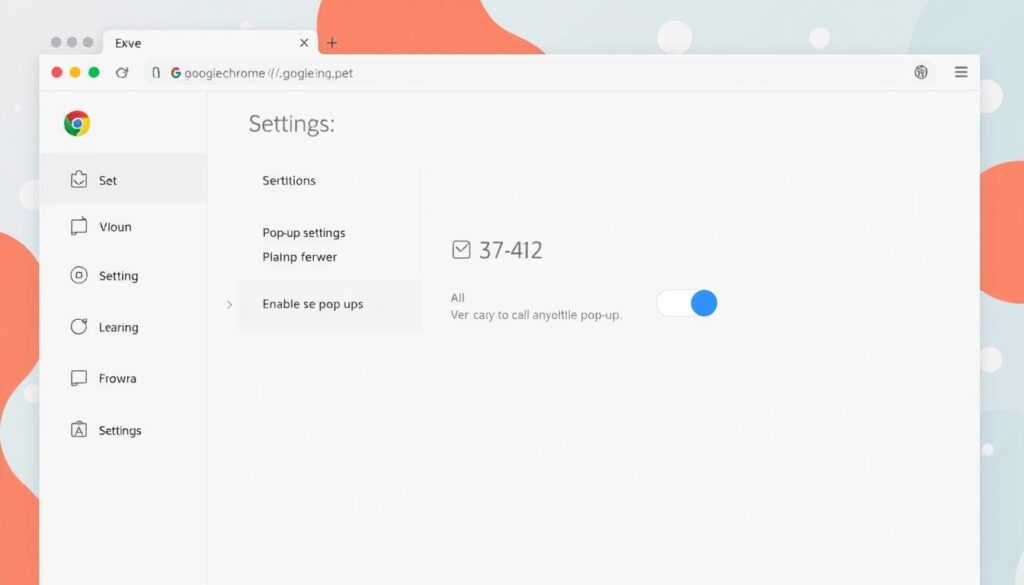
Google Chrome blocks pop-ups to protect your online experience. However, managing these settings is key for accessing important web features. Understanding pop-up controls helps maintain your digital security.
Not all pop-ups are bad. Some websites use them for customer service or important notifications. When Chrome blocks these windows, you’ll see a “Pop-up blocked” message.
Chrome offers flexible options to control pop-ups. You can allow pop-ups from specific sites or adjust global settings. This lets you customize your browsing experience.
Be aware that persistent pop-ups might indicate problems. They could be due to site notification subscriptions or potential malware infections1.
Key Takeaways
- Chrome blocks pop-ups by default for user protection
- Not all pop-ups are harmful or spam
- You can customize pop-up settings in Chrome
- Persistent pop-ups might signal potential security risks
- Managing Chrome pop-up settings is straightforward
Understanding Pop-Ups in Google Chrome
Pop-ups play a key role in web browsing. Knowing how Chrome’s pop-up blocker works can improve your online experience. It helps you navigate websites more smoothly and safely.
What Are Pop-Ups?
Pop-ups are extra windows that open when you visit a website. They can show important info or ads2. Chrome blocks these windows by default to protect your browsing2.
Common Uses for Pop-Ups
- Login forms
- Account notifications
- Additional product information
- Newsletter subscriptions
- Promotional offers
Why Some Pop-Ups Are Blocked
Not all pop-ups are good. Chrome’s blocker shields you from harmful or pushy content2. You can choose which sites can show pop-ups, tailoring your online experience2.
“Pop-ups can be useful or annoying – it’s all about context and control.”
| Pop-Up Type | Typical Purpose | Chrome Blocking Status |
|---|---|---|
| Login Forms | Authentication | Can be Allowed |
| Advertisements | Marketing | Typically Blocked |
| Security Alerts | Important Notifications | Can be Allowed |
Chrome lets you manage pop-up exceptions with ease. You can allow pop-ups from trusted sites while blocking others2. This approach keeps you in control of your browsing3.
Steps to Enable Pop-Ups in Google Chrome
Chrome’s pop-up settings help manage notifications and improve browsing. By enabling pop-ups, you gain more control over your browser’s behavior4.
Accessing Chrome Browser Settings
Here’s how to manage Chrome pop-up notification settings:
- Open Google Chrome on your device
- Click the three-dot menu in the top-right corner
- Select “Settings” from the dropdown menu
- Navigate to “Privacy and security”
Modifying Pop-Up Settings
Chrome blocks pop-ups to reduce screen clutter1. You can easily adjust these settings to suit your needs.
- Click on “Site Settings”
- Select “Pop-ups and redirects”
- Toggle the setting to allow pop-ups
Adding Specific Sites to Allow List
Chrome offers a simple way to enable pop-ups for specific websites4. When a pop-up is blocked, an icon appears in the address bar.
Click this icon and choose “Always allow pop-ups and redirects” for that particular site1.
| Setting | Action | Result |
|---|---|---|
| Default Setting | Block Pop-Ups | Prevents Automatic Pop-Ups |
| Site-Specific Setting | Allow Pop-Ups | Enables Specific Website Pop-Ups |
Pro tip: Not all pop-ups are spam. Some legitimate websites use them for important content delivery1.
Need more help? Check Chrome’s official support documentation for the latest guidance on managing pop-ups.
Troubleshooting Pop-Up Issues
Chrome’s pop-up blocker settings can cause unexpected challenges. The browser disables pop-ups by default for a safer browsing experience5. This feature blocks intrusive pop-ups while allowing users to manage exceptions5.
If pop-ups aren’t working, check your browser’s notification and site settings. Some websites need specific permissions to show pop-ups. You can adjust these in Chrome’s site configuration panel.
For more help, browse community forums for Chrome pop-up solutions. These forums often offer targeted advice for specific issues.
Updating Chrome is key to fixing pop-up problems. Old versions may clash with new web tech. To update, click the three-dot menu and select “Help,” then “About Google Chrome.”
Still having issues? Try clearing your browser’s cache and cookies. This can fix technical conflicts blocking pop-ups. For problems on specific sites, use the ‘i’ icon in the address bar.
Remember, some websites may need your permission to display content. Chrome’s pop-up management is strong, but individual site settings can vary.
FAQ
Why does Google Chrome block pop-ups by default?
Chrome blocks pop-ups to shield you from unwanted content. This protects your browsing experience and device security. It prevents automatic pop-ups, giving you more control over your online viewing.
How can I temporarily allow a pop-up on a specific website?
Look for the “Pop-up blocked” icon in Chrome’s address bar. Click it and select “Always allow pop-ups and redirects” for that site. This grants immediate access to blocked content while maintaining overall protection.
Can I manage pop-up settings for multiple websites?
Absolutely! Go to Chrome’s Settings > Privacy and Security > Site Settings > Pop-ups and redirects. Here, you can add sites to your allowed list or block all pop-ups. This offers detailed control over which sites can show pop-ups.
What should I do if pop-ups aren’t working after enabling them?
Make sure your Chrome browser is up to date. Check for notification subscriptions that might block pop-ups. Clear your browser cache and cookies, and verify site-specific settings.
If issues continue, it could signal a malware problem. Consider running a browser or computer security scan.
Are all pop-ups harmful?
Not at all! Some pop-ups serve important functions like login forms and account notifications. They can also provide additional information windows and interactive content. Chrome’s blocker aims to stop intrusive pop-ups while allowing necessary ones from trusted sites.
How do I allow pop-ups on mobile Chrome?
On Android, open the Chrome app and go to Settings > Site Settings > Pop-ups. Toggle the settings to allow pop-ups. You can also manage permissions for individual websites in this menu.
What if a specific website consistently has pop-up issues?
For ongoing problems, click the ‘i’ icon in the address bar for more pop-up settings. Site owners can check the Abusive Experience Report to identify blocking issues. This helps resolve problems that prevent pop-ups from displaying correctly.
Source Links
- Block or allow pop-ups in Chrome – Computer – https://support.google.com/chrome/answer/95472?hl=en&co=GENIE.Platform=Desktop
- Allow or block popup windows in Chrome – https://www.whatismybrowser.com/guides/popups/chrome
- Pop-Ups on Chrome: How to Allow or Disable Them | LambdaTest – https://www.lambdatest.com/blog/pop-ups-on-chrome/
- Enable Pop-ups | Worldwide Services – https://worldwideservices.net/enable-pop-ups/
- How to Allow or Block Pop-Ups in Google Chrome – https://www.howtogeek.com/411439/how-to-allow-or-block-popups-in-chrome/

