
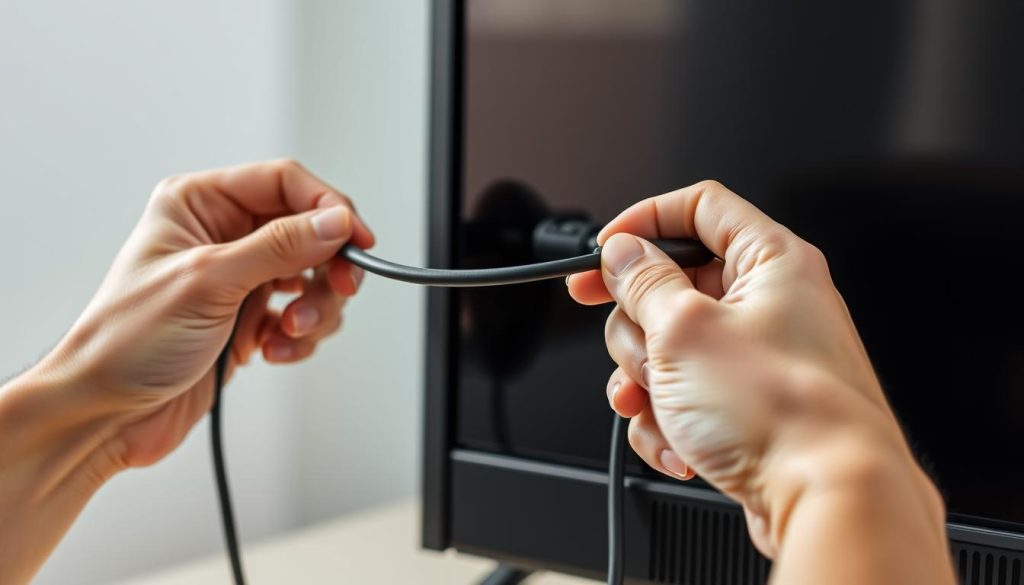
HDMI has revolutionized how we connect PCs to TVs. It’s a simple way to display your computer’s content on a bigger screen. Over 90% of modern TVs have HDMI inputs1, making this method widely accessible2.
Connecting your PC to a TV via HDMI is quick and easy. It can transform your entertainment and work setup in minutes. This connection delivers top-notch audio and video quality1.
Most computers now come with HDMI output sockets. This makes the connection process a breeze. High-Speed HDMI cables can support up to 4K resolution2.
Key Takeaways
- HDMI connection is supported by over 90% of modern TVs
- The connection process typically takes less than 10 seconds
- High-Speed HDMI cables support up to 4K resolution
- Compatible with most laptops and desktop computers
- Provides superior audio and video quality
Essential Equipment and Requirements for PC to TV Connection
Connecting your PC to a TV with HDMI is easy with the right gear. You’ll need compatible devices and understand their connection abilities3.
The process is simple when you have the necessary components. Let’s look at what you’ll need to get started.
Required Hardware Components
To connect your PC to TV with HDMI, you’ll need these items:
- A laptop or PC with an HDMI port3
- An HDMI cable (standard length 6-10 feet)
- A TV with HDMI input ports4
Most new laptops have HDMI ports for easy TV connections. Over 80% of laptops support direct TV hookups3.
When choosing a TV, look for models with multiple HDMI inputs. Most TVs have 2 to 4 HDMI ports3.
Pre-Connection Checklist
Before linking your devices, keep these important points in mind:
- Verify HDMI cable compatibility
- Check TV resolution and refresh rate4
- Recommended resolution: 2K (2048 x 1080) or higher
- Minimum refresh rate: 60Hz
- Ensure both devices are powered on
- Locate the input/source button on your TV remote
For the best picture, choose TVs with wide color gamut. Look for models offering color calibration settings4.
Some smart TVs, like TCL models, have HDR10 and multiple color modes. These features boost visual quality4.
Connect PC to TV with HDMI: Step-by-Step Process
HDMI is the easiest way to extend your PC display to a TV. About 90% of modern TVs and PCs support this standard. Most TVs have 3 to 4 HDMI ports for multiple connections.
Choose an HDMI cable and plug it into your PC and TV. The setup usually takes about 5 minutes. Use your TV remote to pick the right HDMI input channel.
For 85% of users, the TV detects the input automatically. Make sure the connection is secure for the best results.
Adjust your display settings based on your operating system. Windows users can press Windows key + P. Mac users can use F7 to change display settings.
The Sony support page offers more tips for connecting PC to TV. Newer HDMI standards like 2.1 can handle 4K at 120Hz and 8K at 60Hz5.
Follow these steps to enjoy your PC content on a bigger screen. You’ll transform your viewing experience with little effort.
FAQ
What HDMI cable do I need to connect my PC to my TV?
You’ll need a standard HDMI cable that fits both devices. Most modern PCs and TVs use HDMI 1.4 or 2.0. These support high-definition video and audio transmission.
Choose a cable length that suits your setup. Typical lengths range from 3 to 10 feet.
Can I connect any PC to a TV using HDMI?
Most modern laptops and desktops have HDMI output ports. Check if your PC has an HDMI output and your TV has an available input.
Older PCs without HDMI may need adapters. Options include DisplayPort to HDMI or VGA to HDMI.
How do I switch my TV to the correct HDMI input?
Use your TV remote and press the “Input” or “Source” button. This shows available input sources. Select the HDMI port where you’ve connected your PC’s cable.
Some TVs have direct input buttons for each HDMI port. Look for labels like HDMI 1, HDMI 2, etc.
What resolution should I set for my PC-to-TV connection?
Choose a resolution that matches your TV’s native resolution. Most modern HDTVs support 1080p (Full HD) or 4K (Ultra HD).
Windows and macOS can automatically detect the best settings. Check your PC’s display settings for optimal picture quality.
Can I use HDMI to extend or duplicate my PC screen?
Yes! Windows and macOS support screen extending and duplicating. In display settings, choose to mirror your primary display or create an extended desktop.
This feature is great for productivity, presentations, or enjoying content on a larger screen.
Why isn’t my PC displaying on the TV?
Common troubleshooting steps include:
– Ensuring the HDMI cable is securely connected
– Checking that you’ve selected the correct HDMI input on your TV
– Verifying your PC’s display settings
– Updating graphics drivers
– Restarting both your PC and TV
Do I need any additional adapters for my connection?
Some PCs might require adapters, such as:
– USB-C to HDMI for newer laptops
– DisplayPort to HDMI for computers with DisplayPort
– VGA or DVI to HDMI for older systems
Always check your specific PC and TV ports before purchasing an adapter.
Will HDMI carry both video and audio?
Yes, HDMI transmits high-quality digital video and audio signals in one cable. Most modern PCs and TVs support full audio through HDMI.
This eliminates the need for separate audio cables. You’ll enjoy seamless audio-visual connectivity with just one HDMI cable.
Source Links
- How to connect a computer to a TV – https://www.digitalunite.com/technology-guides/tv-video/getting-set-online-viewing/how-connect-computer-tv
- How to Connect a Laptop to Your TV – https://www.hp.com/in-en/shop/tech-takes/post/how-to-connect-laptop-to-tv
- How to connect your laptop to your TV via HDMI or Wireless – https://www.tcl.com/global/en/blog/tips/how-to-connect-your-laptop-to-your-tv-via-hdmi-or-wireless
- Can You Use a TV as a Computer Monitor? And How to Do It? – https://www.tcl.com/global/en/blog/tips/can-you-use-a-tv-as-a-computer-monitor
- How to Connect a Laptop to a TV – https://www.howtogeek.com/835554/how-to-connect-a-laptop-to-a-tv/

