
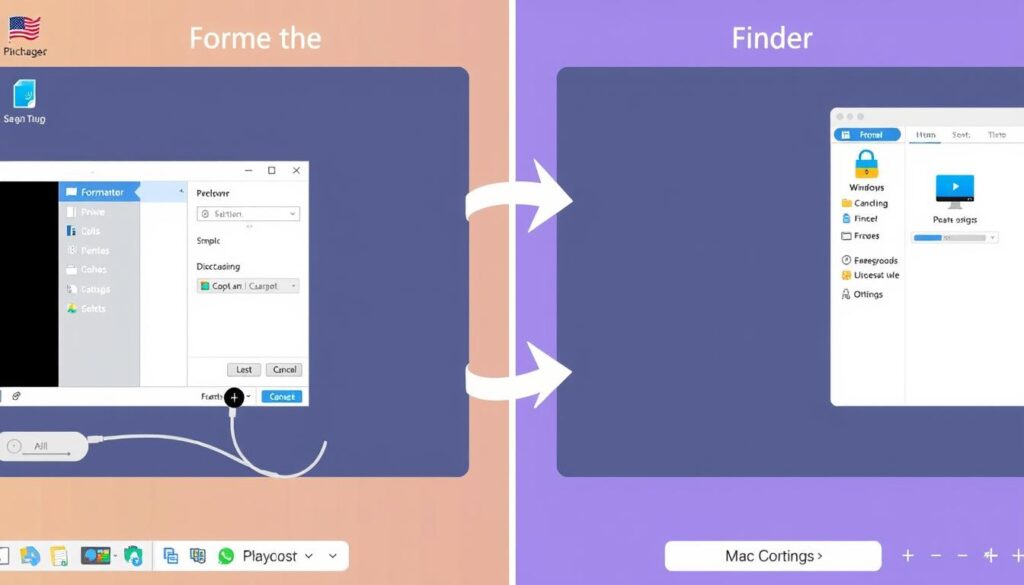
Formatting a flash drive is crucial for effective digital storage management. It helps prepare USB drives for cross-platform use and optimizes performance. This guide covers essential steps for formatting on Windows and Mac systems.
Different file systems offer unique benefits for USB drives. FAT32 is widely compatible but limits file sizes to 4GB. ExFAT supports larger files and works across platforms, ideal for drives above 32GB.
Remember, formatting erases all data on your drive. Back up important files before starting. The goal is to create a clean, optimized storage device for seamless use across computers.
Key Takeaways
- Formatting prepares your USB drive for optimal performance
- Choose the right file system based on your storage needs
- Always back up data before formatting
- ExFAT offers the best cross-platform compatibility
- Different operating systems require specific formatting approaches
Understanding the Need to Format a Flash Drive
Formatting prepares your flash drive for optimal use. It ensures smooth performance across different devices and operating systems. Your USB drive might need this preparation for the best results.
Formatting sets up your storage device for efficient use. It’s more than just erasing data. Most flash drives come pre-formatted in exFAT, a versatile file system4.
What Does Formatting Mean?
Formatting creates a filing system that organizes your data. It maximizes storage space on your device. There are two main formatting approaches:
- Quick Format: Deletes the file system table rapidly
- Full Format: Thoroughly scans and writes zeros across all sectors
Benefits of Formatting Your Flash Drive
Formatting offers several advantages when you want to erase USB data:
- Completely removes existing data
- Prepares drive for new operating systems
- Resolves compatibility issues
- Frees up storage space
Common Scenarios for Formatting
You might need to format your drive for specific purposes. Here are some common scenarios:
- Switching between different operating systems5
- Preparing a drive for a game console4
- Securing a drive before selling or disposing
- Resolving file system compatibility issues
Pro Tip: Always backup your important data before formatting any storage device!
Different file systems offer unique advantages. FAT32 remains the most versatile, while exFAT provides broader compatibility with modern devices6.
Step-by-Step Guide to Format a Flash Drive on Windows
Formatting a flash drive helps manage digital storage and boost performance7. Windows offers easy methods for formatting, suitable for various needs7.
Caution: Formatting erases all data on your USB drive. Back up important files before starting7.
Formatting Using File Explorer
Here’s a simple method for Disk Management and File System Creation:
- Insert your flash drive into a USB port
- Open File Explorer
- Right-click on the USB drive
- Select “Format”
- Choose your preferred file system:
- FAT32 (limited to 4GB files)
- exFAT (cross-platform friendly)
- NTFS (Windows native)
- Name your drive
- Click “Start”
Advanced Formatting via Disk Management
For thorough Data Removal from USB, try Windows Disk Management8:
- Right-click the Start button
- Select “Disk Management”
- Locate your USB drive
- Right-click and choose “Format”
Quick vs. Full Format: Understanding the Difference
Windows offers two formatting options. Each has unique features to consider.
| Format Type | Speed | Thoroughness |
|---|---|---|
| Quick Format | Fast | Basic data removal |
| Full Format | Slow | Comprehensive drive scan |
“Choosing the right format method depends on your specific needs and time constraints.” – Storage Expert
Discover more about USB formatting at Microsoft’s official Windows hardware guide8.
How to Format a Flash Drive on Mac
Formatting an external drive on Mac requires choosing the right file system. USB drive preparation involves selecting a system that meets your needs and ensures compatibility. Mac users can easily format flash drives using Disk Utility or Finder.
Your drive setup depends on key factors. FAT32 is popular as it works with both Mac and Windows9. For drives over 32GB, ExFAT allows seamless file transfers across operating systems10.
APFS offers advanced features for modern Macs running High Sierra or later11. It’s optimized for solid-state drives, making it ideal for newer systems.
Always back up important data before formatting. Consider your main operating system and intended use when picking a file system. Crucial offers detailed guidance for this process.
Some file systems have limits, like FAT32’s 4GB file size cap9. Choose wisely based on your storage needs10.
Pro tip: ExFAT is best for switching between Mac and Windows. It supports larger files and works across different platforms9.
FAQ
What does formatting a USB flash drive do?
Formatting creates a new file system on your USB drive. It erases all data and organizes how information will be stored. This process optimizes the drive’s performance and prepares it for different operating systems.
What are the different types of formatting?
There are two main types: quick format and full format. Quick format swiftly deletes the file system table and root folder. Full format is more thorough, scanning for bad sectors and writing zeros across all sectors.
Which file system should I choose for my USB drive?
Your choice depends on your needs:
– FAT32: Works with most devices, but has a 4GB file size limit
– exFAT: Great for cross-platform use and larger files
– NTFS: Native to Windows with advanced file protection
– APFS: Best for Mac systems with improved performance
Is formatting the same as deleting files?
No, formatting is more thorough than deleting files. It erases all data and resets the drive’s file system. This makes data recovery much harder compared to standard file deletion.
How long does formatting a USB drive take?
The time varies based on formatting type and drive size. Quick format usually takes seconds to a minute. Full format can take several minutes to an hour, depending on drive capacity.
Can I format a USB drive without losing all my data?
No, formatting erases all data on the drive. Always back up important files before formatting. This prevents permanent data loss on your USB drive.
What are the common reasons for formatting a USB drive?
People format USB drives to:
– Erase sensitive data before selling or disposing
– Fix compatibility issues between operating systems
– Prepare the drive for a new purpose
– Remove viruses or malware
– Boost drive performance
Is it safe to format an external hard drive?
Yes, formatting is a normal maintenance task for external drives. However, back up all important data first. Formatting will permanently delete everything on the drive.
Source Links
- How to Format a USB Drive for Windows and Mac – https://sfpl.org/sites/default/files/2022-11/HowToFormatUSBdriveForWindowsAndMac.pdf
- How to Format a USB Flash Drive – https://www.kingston.com/en/blog/personal-storage/how-to-format-a-usb-flash-drive
- How to format flash drives for Mac and PC | AppleInsider – https://appleinsider.com/inside/macos-ventura/tips/how-to-format-flash-drives-for-mac-and-pc
- How To Format a USB Flash Drive – USB Memory Direct – https://www.usbmemorydirect.com/blog/need-format-new-flash-drive/?srsltid=AfmBOooYyyLJFlBnexQ0p982UokDp_CSqCJPNGwiamvcNc5XPKP9jI6M
- 5 Flash Drive Format Types to Know – https://www.usbmemorydirect.com/blog/flash-drive-format-types/?srsltid=AfmBOopcXJ_WAuHfGzmp95qrrPNPXJt6HxNTgoB4_qPeT0lzRkHi-Nhl
- How to format a USB drive – https://www.corsair.com/us/en/explorer/diy-builder/storage/how-to-format-a-usb-drive/?srsltid=AfmBOopgR2bZ4b-ORpHP6B6jv_HTj-obygtRmipSPWr5yoK2NSLS2ead
- A Comprehensive Guide on How to Reformat a Flash Drive – https://www.pitsdatarecovery.com/blog/how-to-reformat-a-flash-drive/
- How to Format Pendrive Using CMD [Step-by-Step Guide] – https://www.easeus.com/partition-master/format-usb-flash-drive-using-cmd.html?srsltid=AfmBOoqjmcK-0MmHmZ4YTR_BJrXMxeSQ_CLU94o5ySHEiF4WrYT_Ku47
- How to format a USB drive on Mac – https://macpaw.com/how-to/format-usb-drive-on-mac
- How To Format USB And SD Card On Mac In Seconds – Setapp – https://setapp.com/how-to/erase-sd-card-and-format-usb-drive-on-mac
- How to Format USB Flash Drive on Mac (Step-by-Step Tutorial) – https://www.cleverfiles.com/howto/format-usb-drive-mac.html

