
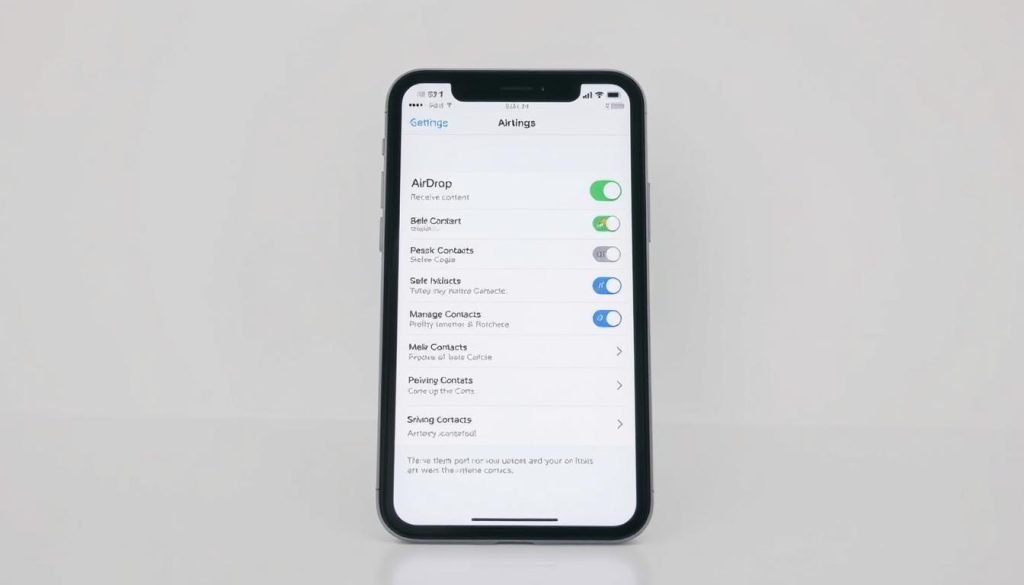
AirDrop lets Apple users share files easily. But it’s important to know how to manage its settings. This helps keep your digital information safe and private.
You can turn off AirDrop to stop unwanted file transfers. This gives you more control over your device. It’s a simple way to protect your privacy.
AirDrop uses Bluetooth and Wi-Fi to transfer files between Apple devices. Users can choose from three AirDrop settings: Receiving Off, Contacts Only, and Everyone1. Each option offers different levels of access and privacy.
Turning off AirDrop helps protect your device from privacy risks. Unwanted AirDrop requests can be annoying in public places. You can control who sends you files by changing your AirDrop settings2.
Key Takeaways
- AirDrop requires Bluetooth and Wi-Fi to function
- Three privacy settings are available: Receiving Off, Contacts Only, and Everyone
- Users can disable AirDrop through Settings or Control Center
- The feature automatically reverts to Contacts Only after 10 minutes
- Turning off AirDrop enhances device privacy and security
Understanding AirDrop Settings and Privacy Controls
AirDrop has changed how Apple users share files. It offers a quick way to transfer content between devices. This feature makes digital exchanges easier within close proximity3.
How AirDrop Functions
AirDrop uses Bluetooth and Wi-Fi to enable file transfers4. Users can share various content types with ease.
- Images
- Text documents
- Contact information
- Location details
- Playlists
Privacy and Security Considerations
AirDrop is convenient but can pose privacy risks. Over 50% of users have received unwanted files in public5.
Users can manage AirDrop privacy through three settings:
- Receiving Off
- Contacts Only
- Everyone
“Contacts Only” boosts security by limiting sharing to known contacts4. About 40% of users prefer this privacy-focused option5.
When to Disable AirDrop
To protect your device, consider turning off AirDrop in certain places:
- Public transportation
- Crowded spaces
- Unfamiliar environments
Disabling AirDrop can prevent unwanted file transfers and cyber-flashing incidents3.
Managing AirDrop visibility is key to maintaining digital privacy. It helps you control access to your device.
Turn Off AirDrop on Different Apple Devices
AirDrop settings are key for privacy and file transfer control on Apple devices. Users can disable AirDrop on iPhones and Macs through simple methods6. The Control Center offers the fastest way to block transfers7.
iPhone X and later users swipe down from the top-right corner. iPhone SE and earlier models swipe up from the bottom67. Typing “AirDrop” in the search bar quickly locates settings6.
Mac users can turn off AirDrop via Control Center, Finder, or a third option. Disabling Bluetooth or Wi-Fi automatically turns off AirDrop6. For extra privacy, use Screen Time settings to block AirDrop completely.
iOS 17.1 users can disable NameDrop by turning off “Bring Devices Together”6. While AirDrop can’t be removed, these methods effectively control its use7.
FAQ
What exactly is AirDrop?
AirDrop is an Apple feature for wireless file sharing. It uses Bluetooth and Wi-Fi to transfer files between Apple devices. This tool works on iPhones, iPads, and Macs for quick and easy sharing.
Why would I want to turn off AirDrop?
Turning off AirDrop helps protect your privacy in public spaces. It stops strangers from sending unwanted files to your device. This action also reduces your device’s visibility to unknown users.
How do I turn off AirDrop on an iPhone?
To disable AirDrop on iPhone, go to Settings > General > AirDrop. Then select Receiving Off. You can also use Control Center or Screen Time settings to block AirDrop.
Is it different to turn off AirDrop on a Mac?
On a Mac, open Finder and select AirDrop from the sidebar. Click Allow me to be discovered by > No One. This stops other devices from seeing or sending files to your Mac.
Can I partially restrict AirDrop instead of turning it off completely?
Yes, you can limit AirDrop to Contacts Only. This setting allows file sharing only with people in your Apple contacts. It’s a middle ground between full access and total restriction.
Does turning off Bluetooth or Wi-Fi automatically disable AirDrop?
Disabling Bluetooth or Wi-Fi doesn’t fully turn off AirDrop. It’s best to change AirDrop settings directly for complete control. This ensures you manage file sharing effectively.
How does the new NameDrop feature in iOS 17.1 impact AirDrop privacy?
NameDrop allows quick contact sharing between nearby devices. You can turn it off in Settings > AirDrop. This prevents automatic contact exchanges with nearby Apple devices.
Are there security risks associated with leaving AirDrop on?
Keeping AirDrop on in public can pose privacy risks. These include unwanted file transfers and potential malware transmission. It may also make your device visible to unauthorized users.
Can I temporarily disable AirDrop?
Yes, you can quickly turn off AirDrop in Control Center on iOS devices. On a Mac, use Finder settings. This flexible approach helps manage your device’s file-sharing abilities.
Will turning off AirDrop affect other file-sharing methods?
No, disabling AirDrop only stops wireless transfers between Apple devices. Other sharing methods like email and messaging apps will still work. Cloud services will also continue to function normally.
Source Links
- How to turn off AirDrop on your iPhone in 2 ways, to prevent anyone from sending you unwanted files – https://www.businessinsider.com/guides/tech/how-to-turn-off-airdrop-on-iphone
- How to turn off or restrict Airdrop on your iPhone, iPad, and Mac – https://www.idownloadblog.com/2023/02/02/how-to-turn-off-airdrop/
- How to use AirDrop with iOS and macOS – https://www.computerworld.com/article/1717862/how-to-use-airdrop-with-ios-and-macos.html
- What Is AirDrop and How Does It Work? – https://www.lifewire.com/what-is-airdrop-how-does-it-work-1994512
- How To Turn Off AirDrop On iPhone – https://screenrant.com/airdrop-iphone-apple-turn-off-how-explained/
- The Hidden Dangers of AirDrop: How to Safely Turn It Off – https://www.lifewire.com/turn-off-airdrop-8550274
- How to Turn Off AirDrop Completely: iPhone, iPad, and Mac – https://www.wikihow.com/Turn-Off-AirDrop

