
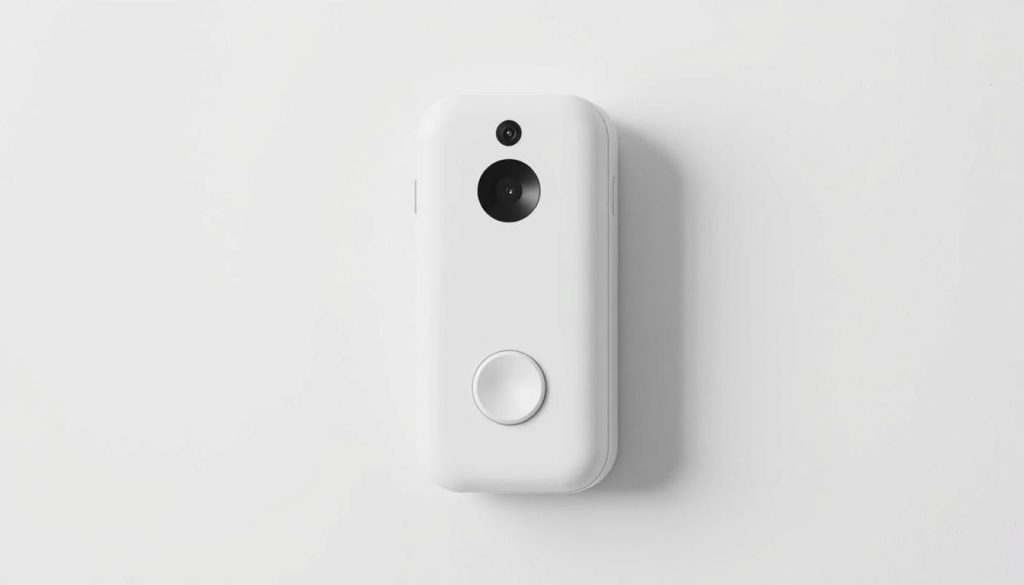
Ring doorbells are smart home devices that may need resetting to fix issues. Resetting can solve technical problems or prepare the device for a new owner. It’s important to know how to reset your Ring Doorbell for best performance.
Different Ring models have unique reset methods. Most share common steps, like finding a specific button. Knowing how to reset can save you time and reduce frustration.
Resetting erases all settings, including Wi-Fi passwords and custom configurations1. Be sure to prepare before starting the reset process.
Key Takeaways
- Reset methods vary depending on Ring Doorbell model
- Factory reset erases all existing device settings
- The reset process typically involves a specific button press
- Always remove the device from the Ring app before transferring
- Resetting can resolve most technical and connectivity issues
Understanding Ring Doorbell Reset Methods
Ring doorbells are key to smart home security. They offer reliable and easy device management. Sometimes, these devices need resets to work their best.
Knowing different reset methods helps you fix issues. It also keeps your Ring doorbell working well.
Types of Ring Doorbell Resets
There are two main ways to reset your Ring doorbell:
- Soft Reset (Reboot): A quick fix for small tech problems
- Factory Reset: A full reset that brings the device back to its original settings
When to Consider a Reset
You might need to reset your Ring doorbell for several reasons. These include connection issues or persistent tech problems.
You may also want to reset before selling the device. Most users prefer the mobile app for resets2.
Preparing for Reset
Before you reset, take these important steps:
- Make sure the battery is at least 50% charged3
- Have your Wi-Fi password ready
- Check your device’s model requirements
- Save any important recorded footage
Pro Tip: Always use a 2.4 GHz Wi-Fi network. It works best with Ring doorbells3.
Knowing these reset methods helps you keep your Ring doorbell working well. You can solve tech issues faster and more easily.
Reset a Ring Doorbell: Step-by-Step Instructions
Ring doorbell resets can fix connectivity and performance issues. Knowing how to reset is key for home security. Reset steps may differ based on your model.
Before resetting, have your Ring account info ready. Ensure you have a stable internet connection. Most models have a button with an orange dot for resetting45.
Ring has 8 different doorbell models. Each model has its own reset process4.
Resetting Older Ring Doorbell Models
For older models, take the device off its bracket. Press the orange setup button for 10 seconds6. The front light will flash during the reset.
When the light turns off, the reset is done. This means all previous settings are gone65.
Resetting Newer Ring Doorbell Models
Newer models like Video Doorbell 4 need faceplate removal. This lets you reach the setup button5. Hold the button for about 10 seconds until reset is complete4.
After resetting, the doorbell enters setup mode. All previous settings are erased6.
Troubleshooting Common Reset Issues
Check WiFi connections and battery charge when troubleshooting. Make sure you’re using the right reset steps for your model. Verify that you’re following the correct procedure.
Remove the device from your old Ring app account. This allows smooth transfer to a new owner6.
FAQ
What’s the difference between a soft reset and a factory reset for my Ring Doorbell?
A soft reset quickly restarts your device to fix minor issues. It keeps your settings intact. A factory reset erases all saved configurations. It returns the device to its original state.
Factory resets are used for persistent problems or when selling your Ring Doorbell.
How do I know when I should reset my Ring Doorbell?
Reset your Ring Doorbell if you have connectivity problems, distorted audio, or video quality issues. A soft reset can help with minor glitches. A factory reset is better for major troubleshooting.
Consider a reset if you’re planning to transfer ownership of the device.
What should I do before performing a reset on my Ring Doorbell?
Before resetting, identify your Ring Doorbell model and update the Ring app. Ensure your device has enough battery charge. Have your WiFi network information ready for reconfiguration.
Back up any important footage or settings if possible.
How do I perform a factory reset on an older Ring Doorbell model?
For older models, remove the device from its mounting bracket. Find the orange reset button and hold it for 15-20 seconds. Release when you see the light flashing.
The device will then reset to its factory settings.
What are the steps to reset a newer Ring Doorbell model?
For newer models, carefully remove the faceplate. Find the setup button, often marked with an orange dot. Press and hold it for 15 seconds.
Wait for the light indicator to signal the reset. Then, reconfigure the device through the Ring app.
What common issues might I encounter during a Ring Doorbell reset?
Common reset issues include unresponsive buttons, WiFi connection problems, and battery-related issues. App synchronization challenges can also occur.
To troubleshoot, ensure a strong WiFi connection and update the Ring app. Check battery levels and restart your mobile device if needed.
Will I lose my recorded videos when I reset my Ring Doorbell?
A factory reset removes all saved settings and local device memory. Cloud-stored videos remain accessible with a Ring Protect Plan. Back up important local recordings before performing a full reset.
How often should I reset my Ring Doorbell?
Only reset your Ring Doorbell when necessary. Soft resets can fix minor issues occasionally. Limit factory resets to troubleshooting critical problems or transferring ownership.
Source Links
- How to completely reset your Ring Video Doorbell – https://ring.com/support/articles/lc4kn/factory-reset-your-Ring-Video-Doorbell?srsltid=AfmBOoqe9ye82GQStE_-nmYCKilU5eP4odxdGvp6JWr-E-vqkmOYRItk
- How to reset your Ring Doorbell – https://www.androidpolice.com/how-to-reset-ring-doorbell/
- How to Reset Ring Doorbell WIFI? [Ring doorbell 1, Ring doorbell 2 and Ring doorbell Pro] – https://heckhome.com/how-to-reset-ring-doorbell-wifi/
- How to factory-reset your Ring video doorbell in two steps – https://www.pocket-lint.com/how-to-reset-ring-doorbell/
- How to factory reset your Ring doorbell – https://www.androidauthority.com/how-to-reset-ring-doorbell-3231424/
- How to completely reset your Ring Video Doorbell – https://ring.com/support/articles/lc4kn/factory-reset-your-Ring-Video-Doorbell?srsltid=AfmBOoo3C5nZIVNpkmHIhb70sNrIExO1OHs8v0p5NBdBjMSvGNHOhbsr

