
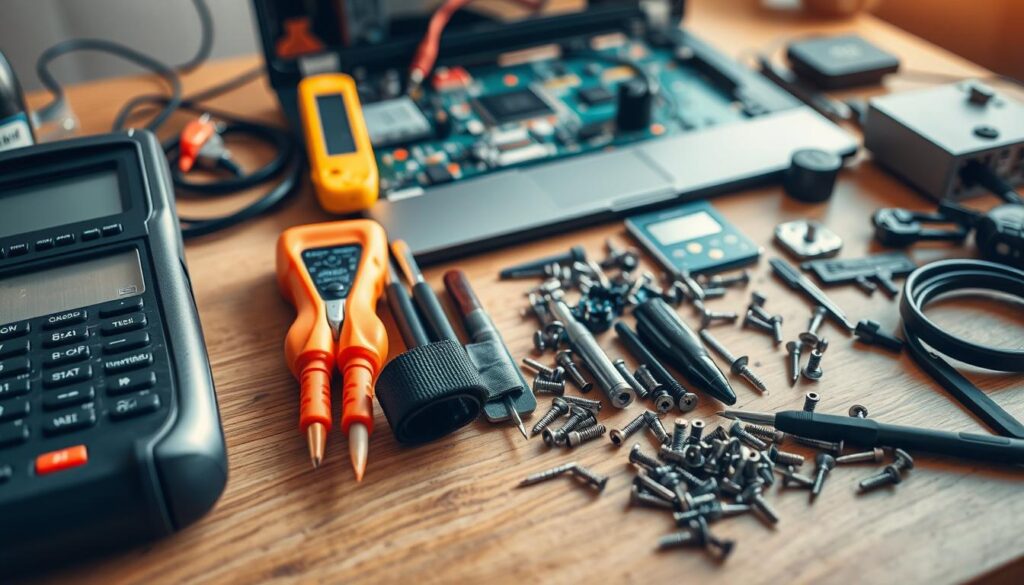
Fix your computer at home to save time and money. Many repair tasks are doable with the right know-how and tools. Learn basic troubleshooting to solve common PC issues yourself1.
Start by gathering essential tools for desktop or laptop repair. Get a basic computer repair toolkit before you begin. Remember to unplug your device and let it cool for five minutes1.
Some parts are easier to fix than others. Memory, hard drives, cooling fans, keyboards, and power supplies are simple to replace. Upgrading to an SSD can boost your computer’s speed1.
Key Takeaways
- Always unplug your device before starting repairs
- Use proper computer repair tools
- Some components are easier to replace than others
- Consider SSD upgrades for better performance
- Take precautions to prevent static electricity damage
Understanding Common Computer Issues
Computers can face various problems that affect their performance. Knowing hardware and software issues is key for good maintenance. This knowledge also helps with timely virus removal2.
Identifying Hardware vs. Software Problems
Computer issues usually fall into two main groups: hardware and software problems. Hardware repair deals with physical parts like RAM and hard drives. Software repair focuses on fixing issues within the operating system or apps3.
- Hardware Problems:
- Faulty power supplies
- Malfunctioning RAM
- Hard drive failures
- Software Problems:
- Malware infections
- Operating system errors
- Slow system performance
Signs Your Computer Needs Repair
Watch for these warning signs that show your computer needs quick attention:
- Slow processing speeds2
- Frequent system crashes3
- Unusual noises from hardware4
- Blue Screen of Death (BSOD)2
- Internet connectivity issues2
Tools You Need for Troubleshooting
| Tool | Purpose |
|---|---|
| Screwdrivers | Hardware component removal |
| Anti-static wrist strap | Prevent electrical damage |
| Compressed air | Clean internal components |
| Diagnostic software | Identify system issues |
“Nine out of 10 times, computer freezes can be fixed simply by rebooting the system”4.
Pro tip: Always back up your important files before attempting any repairs to protect your data from potential loss.
Step-by-Step Computer Repair Process
Keeping your computer healthy requires a smart approach. Learn to spot and fix common issues before they grow. This skill is essential for every tech-savvy user.
Basic Maintenance for Computer Longevity
Regular upkeep is key to a smooth-running computer. Experts suggest routine cleaning to avoid slowdowns5. Here are some vital tips:
- Remove dust using compressed air every few months
- Check cable connections regularly
- Use a UL-rated surge protector
- Unplug during electrical storms
Diagnosing Common Computer Problems
Smart troubleshooting follows a step-by-step plan. Here are key diagnostic steps5:
- Check power supply functionality
- Inspect memory card connections
- Verify external cable connections
- Test individual hardware components
Hardware Replacement Strategies
Smart part swaps can save time and money when hardware fails. Common replacements include hard drives, memory chips, power supplies, and expansion cards5.
| Component | Replacement Difficulty | Average Cost |
|---|---|---|
| RAM | Easy | $50-$100 |
| Hard Drive | Moderate | $80-$200 |
| Power Supply | Moderate | $50-$150 |
Software Update and Restoration
Keeping software current and recovering data are vital for top performance. Software fixes usually take 3-5 business days6. Always backup your files before big updates or repairs.
Remember: Preventative maintenance is always cheaper than major repairs!
When to Call a Professional Technician
DIY computer repair has its limits. Professional technicians offer expert knowledge and specialized tools for complex issues. Seeking help can save time, money, and prevent device damage7.
Certain problems signal the need for tech support. Watch for persistent pop-ups, system crashes, or strange noises from your device. These are signs to contact a professional8.
CompTIA A+ certified technicians can solve tricky hardware and software problems. They bring skills that go beyond basic troubleshooting7.
Compare repair costs to replacement part prices. Some services offer clear pricing and warranties. This can provide better value in the long run7.
Pros can help with data recovery and cyber security. They also offer system optimization that’s hard to do alone. These services add extra value7.
Call experts when DIY fails or complex repairs feel overwhelming. Downtown Computer Services helps both residents and businesses with tech issues7.
FAQ
Can I really repair my computer at home?
Yes, many computer repairs can be done at home. Simple tasks like replacing RAM or cleaning components are often manageable. However, be cautious and ensure you’re comfortable before starting any repair.
What tools do I need for basic computer repairs?
Your basic repair kit should include a Phillips head screwdriver and an anti-static wrist strap. You’ll also need compressed air, a small flashlight, and diagnostic software. Always disconnect power before working inside your computer.
How do I know if my computer needs repair?
Look for signs like slow performance, frequent crashes, or unusual noises. Failure to boot, overheating, and unexpected error messages can also indicate problems. These symptoms may point to hardware or software issues.
What are the most common computer parts that need replacement?
Frequently replaced components include RAM, hard drives, and cooling fans. Power supplies, keyboards, and laptop batteries are also common replacements. These parts are usually easy to swap out.
Replacing these components can often boost your computer’s performance significantly.
When should I consider replacing my computer instead of repairing it?
Think about replacement if your computer is over three years old. Also, consider it if repair costs exceed 50% of a new device’s price. If your system struggles with modern software, it might be time for an upgrade.
How can I prevent future computer problems?
Regular maintenance is crucial. Keep your system clean and update software often. Use reliable antivirus protection and avoid downloading suspicious files. Ensure proper ventilation and back up your data frequently.
Is it safe to open my computer and perform repairs?
It can be safe if you take proper precautions. Always unplug the power and use an anti-static wrist strap. Work in a clean space and avoid touching sensitive parts like capacitors.
If you’re unsure, it’s best to consult a professional to prevent potential damage.
What software tools can help me diagnose computer problems?
Useful tools include Windows Memory Diagnostic and CrystalDiskInfo for hard drive health. Malwarebytes helps with virus removal. Built-in system tools like Task Manager can also be helpful.
These tools can identify and potentially fix many common computer issues.
How do I know if a problem is hardware or software related?
Hardware issues often involve physical symptoms like strange noises or visible damage. Software problems usually show up as error messages or unexpected behavior. Diagnostic tools can help distinguish between these two types of issues.
When should I definitely call a professional technician?
Seek expert help for complex motherboard issues or data recovery from damaged drives. Call a pro if you’ve tried repairs but keep failing. It’s also wise to get help if you feel uncomfortable doing the repair yourself.
Source Links
- Do-it-Yourself Computer Repair and Upgrade Tips for Beginners – mHelpDesk – https://www.mhelpdesk.com/do-it-yourself-computer-repair-and-upgrade-tips-for-beginners/
- Solving The Most Common Computer Problems | EIRE Systems – https://www.eiresystems.com/most-common-computer-problems/
- Common Computer Problems and Solutions – https://www.cdw.com/content/cdw/en/articles/hardware/common-computer-problems-and-solutions.html
- 11 Common Computer Issues (and How to Fix Them) – https://www.rednightconsulting.com/11-common-computer-issues-fix/
- Computer Repair | How to Repair Electronics – https://fixitclub.com/electronics-repairs/computer-repair/
- Computer Repair Process – University IT – https://tech.rochester.edu/tutorials/computer-repair-process/
- Finding the Right Computer Technician: Who Repairs Computer – https://www.downtowncomputers.com/finding-the-right-computer-technician-how-to-determine-who-repairs-computer/
- When to Call a Technician | Common Computer Issues – https://www.eggheadit.com/news/know-when-to-call-a-certified-technician-for-computer-repairs/

